
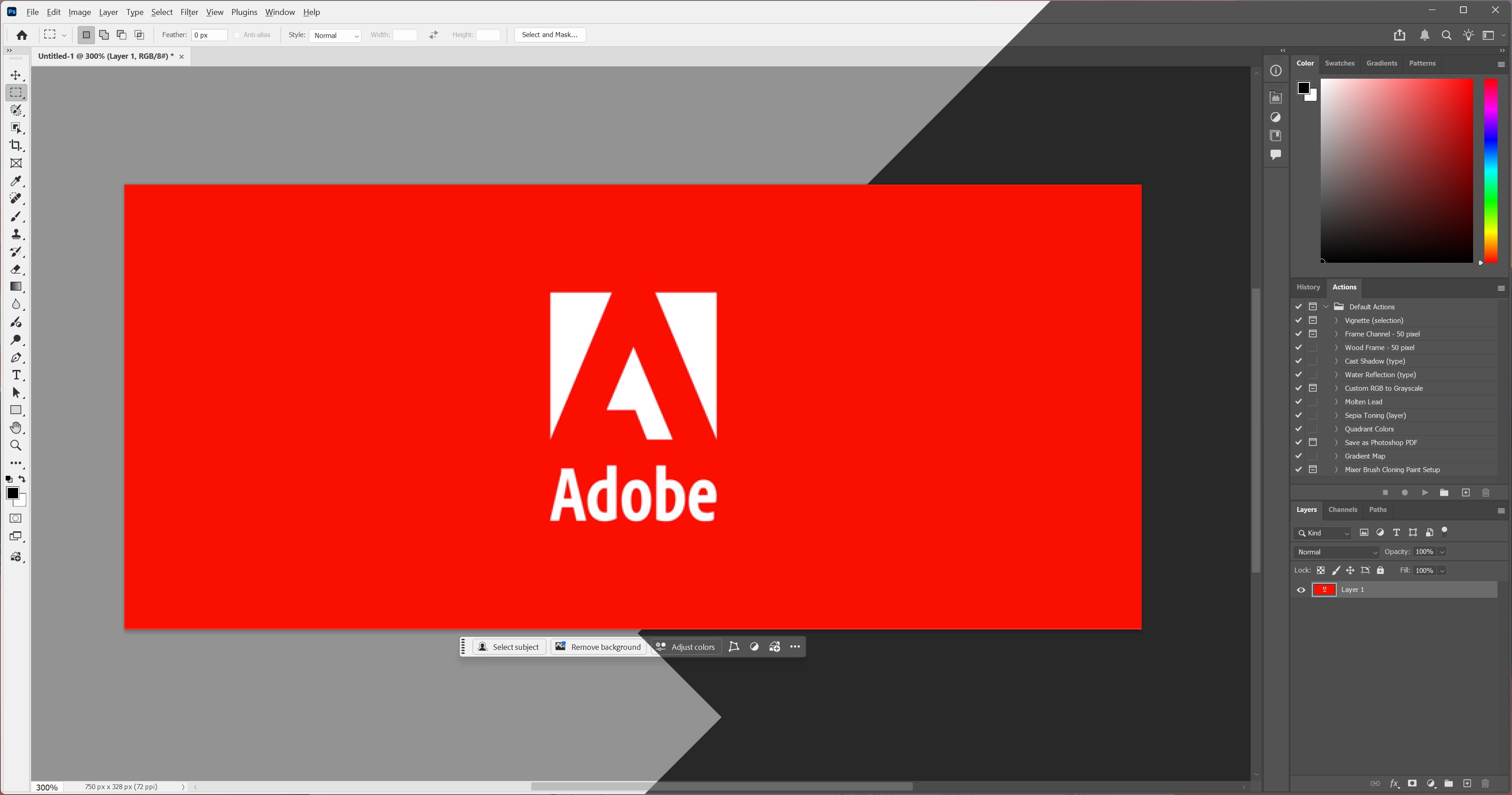
Many Adobe applications support 'themes' in such a way that the user interface can be set to a light or dark shade. What they are missing however is a 'Follow theme' settings. With this we mean that an application uses the current theme of the operating system, in our case Windows. So, if Windows is set to a dark theme, the application also uses a dark theme. This is especially handy when using a setting or application that changes the Windows theme based on the time of day, like Unify does.
Using Unify you can use theme-dependant scripts to make Adobe products follow your Windows theme. This way, when the theme of Windows changes, the theme for the Adobe products changes too.
Keep in mind that the Adobe application will need to be restarted for the change to take effect. This is due to the fact that Adobe applications do not natively follow the Windows theme and Unify changes files that are read only during the application start.
Read on to see how to enable the Follow theme for Adobe products in Windows using Unify.
First, download the scripts by clicking the download button below.
Once downloaded, open the ZIP file. In it, you will find a Unify Import file. Just double-click it to open the file and have Unify import the necessary scripts. Follow the instructions to complete the procedure.
If you ever encounter issues, check the adobe_* scripts at the following locations (press WINDOWS+R and paste the folder path, then click OK, or simply click the Open button from Unify's Clipboard Actions popup after copying):
The scripts are rather easy to understand for those with a little bit of coding experience and by making a few tweaks you can make it work (again).
As you can see above, Unify allows you to use scripts to make applications conform to your Windows theme.
© Copyright by FSS
Terms and disclaimer

 Download Unify Import file